
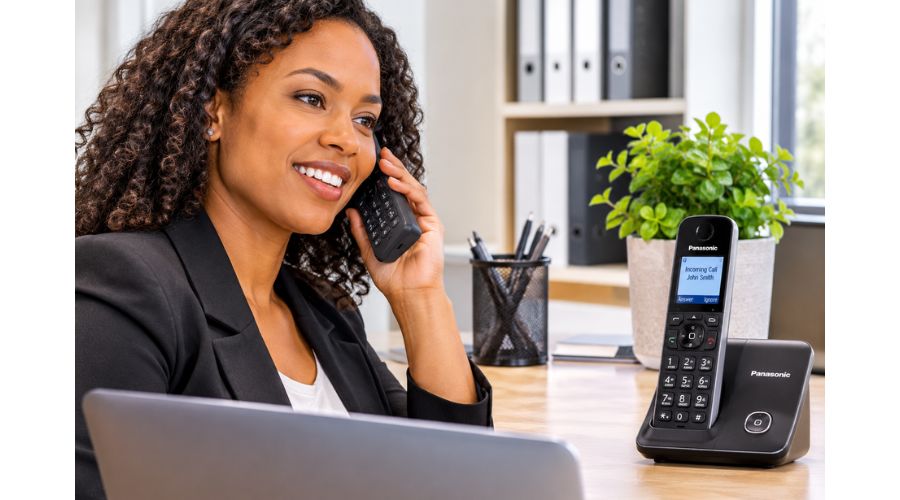
Panasonic cordless phones are popular for their dependable performance and practical features, including caller ID, call blocking, digital answering systems, and—in selected models—Talking Caller ID and Link2Cell. However, even a reliable phone system can develop problems. One frustrating issue is caller ID not working on Panasonic cordless phones.
You may receive a call without seeing the caller’s name or number. Your handset might display “Unknown,” “Unavailable,” or “Private,” or the caller ID feature may work for some calls but not others. In other cases, the phone may ring normally while the display remains blank.
Before assuming that your Panasonic cordless phone is defective, check the telephone service, phone-line connections, handset settings, and caller’s information. Caller ID depends on more than the handset itself. Your telephone provider must deliver the caller’s information, and your phone must be able to receive and display it.
This guide explains why Panasonic cordless phone caller ID may not work, how to troubleshoot the problem, and what to do if the caller ID display still fails after basic checks.
How Caller ID Works on a Panasonic Cordless Phone
Caller ID is a telephone service that delivers information about an incoming call, usually the caller’s phone number and sometimes their name. The telephone network sends this information to your phone, which then displays it on the handset or base unit.
A Panasonic cordless phone does not create caller information on its own. It can only display information that is supplied by the telephone service and supported by the phone.
Some Panasonic models also include Talking Caller ID, which announces caller information aloud. This is separate from the caller ID display. For example, the phone might show a caller’s number but not announce it, or the announcement feature may be disabled while the display continues to work.
If your phone receives calls but does not show caller information, the cause may be the service, the incoming call, a connection issue, or a setting on the handset.
Common Reasons Caller ID Is Not Working on Panasonic Cordless Phones
1. Caller ID Service Is Not Active
Your telephone provider must offer and activate caller ID on your line. If the service is not included in your plan, has been disconnected, or is experiencing a service problem, your Panasonic phone may ring without displaying the caller’s information.
This is one of the first things to check when caller ID is not showing on a Panasonic cordless phone. The handset may be working correctly even though the network is not sending caller ID data.
To check the service:
- Ask your telephone provider whether caller ID is active on your line.
- Find out whether there is a known service interruption.
- If possible, test the line with another telephone that supports caller ID.
- Check whether the problem occurs on every incoming call or only some calls.
If caller ID fails on multiple phones connected to the same line, the issue is more likely to involve the telephone service or line than the Panasonic handset.
2. The Handset Battery Is Low or Failing
A cordless handset depends on its battery for normal operation. When the battery is low or no longer holds a charge, the handset may behave unpredictably. You might notice a dim display, short operating time, or other functions that do not respond as expected.
A weak battery does not necessarily mean it is the direct cause of a caller ID problem, but it is worth ruling out before changing settings.
Try the following:
- Place the handset on its charger.
- Confirm that the base unit is connected to a working power outlet.
- Allow the handset to charge according to the instructions for your model.
- Test caller ID again after charging.
If the battery is old, replace it with a compatible battery specified for your Panasonic model. Do not use an arbitrary battery type simply because it fits inside the handset.
3. The Telephone Line or Connected Equipment Is Causing Interference
Other devices connected to the same telephone line can sometimes interfere with normal operation. These may include a fax machine, modem, answering device, splitter, or additional telephone.
A loose telephone cord, damaged cable, or faulty wall jack can also affect the signal delivered to the base unit.
To check for a line or connection problem:
- Disconnect other equipment from the telephone line.
- Check that the telephone cord is firmly connected to the correct jack on the Panasonic base unit.
- Inspect the cord for visible damage.
- If you have a spare compatible telephone cord, test it.
- Connect the base unit directly to the telephone jack, if possible.
- Make a test call to see whether caller ID appears.
If caller ID starts working after you disconnect another device, reconnect the devices one at a time. This can help identify which piece of equipment is contributing to the problem.
4. Call Forwarding Is Enabled
Call forwarding redirects incoming calls to another number. Depending on your telephone service and forwarding arrangement, the caller information may not appear on the Panasonic handset as expected.
If you have recently enabled call forwarding, check whether the feature is still active. The procedure for disabling it depends on your telephone provider and phone model.
Some Panasonic systems have an IP-service or call-features menu. If yours does, look for a call-forwarding option and follow the instructions in the model’s manual. If the forwarding feature is managed by your telephone provider, contact the provider for the correct deactivation procedure.
Do not assume that every Panasonic cordless phone has the same call-forwarding menu or programming code.
5. Caller ID Display or Talking Caller ID Is Disabled
Some Panasonic cordless phones allow users to adjust caller ID display or announcement settings. Menu labels and available features vary by model.
It is important to distinguish between:
- Caller ID display: Shows caller information on the handset or base screen.
- Talking Caller ID: Announces caller information aloud on supported models.
- Call blocking: Allows the phone to reject or silence selected numbers.
If the phone displays caller information but does not announce it, the issue may involve Talking Caller ID rather than the caller ID service itself. If the display is blank, check the caller ID or display settings listed in your model’s manual.
Use the instructions for your exact handset and base unit. Programming codes and menu paths may differ between Panasonic models, so avoid entering codes taken from instructions for another phone.
6. The Caller Has Hidden Their Number
A Panasonic phone cannot display caller information that the caller or telephone network has withheld. If someone blocks their number, your handset may show “Private,” “Anonymous,” “Unavailable,” or a similar message.
This does not necessarily mean your caller ID is broken. The phone may be displaying the information it received.
To check, ask the caller whether they have enabled caller ID blocking. You can also test the phone with calls from other numbers that are not private.
If caller ID works for other callers, the problem may be related to the incoming caller’s settings rather than your Panasonic phone.
7. Caller Information Is Not Being Delivered by the Network
Caller ID may fail on individual calls because the information was not delivered correctly. This can happen because of a network issue, the type of telephone service, or the way the call is routed.
If caller ID works for some callers but not others, note which calls are affected. If the same callers consistently appear as “Unknown” or “Unavailable,” contact your telephone provider and ask whether caller information is being delivered correctly.
How to Troubleshoot Caller ID on a Panasonic Cordless Phone
Try the following steps in order. They begin with basic checks and move toward more involved troubleshooting.
Step 1: Confirm That Caller ID Is Included in Your Phone Service
Contact your telephone provider and confirm that caller ID is active on your line. Ask whether there are any service interruptions or restrictions affecting caller information.
If the provider confirms that caller ID is active, continue to the next step.
Step 2: Check the Base Unit and Telephone Connections
Make sure the Panasonic base unit is connected to a working power outlet and that the telephone cord is securely attached.
If you use a splitter, modem, fax machine, or other equipment on the same line, temporarily disconnect it. Connect the base unit directly to the telephone jack, if possible, and test caller ID again.
Step 3: Charge the Handset
Place the handset on its charger and allow it to charge. If the battery does not hold a charge, replace it with a compatible battery recommended for your model.
Once the handset is charged, make a test call to check whether caller information appears.
Step 4: Review the Caller ID Settings
Open the handset’s menu and look for caller ID, display, or Talking Caller ID settings. Confirm that the relevant feature is enabled.
If the menu does not include the option you need, consult the manual for your exact Panasonic model. Do not assume that a programming code for one model will work on another.
Step 5: Test Calls From Different Numbers
Ask someone to call you from a number that is not blocked. If caller ID works for that call but not for others, the problem may involve the caller’s privacy settings or the telephone network.
If no incoming calls show caller information, continue troubleshooting the service and phone system.
Step 6: Restart the Panasonic Phone System
A restart can sometimes clear a temporary problem.
- Unplug the Panasonic base unit from its power source.
- Remove the handset batteries if your model uses removable batteries.
- Wait about one minute.
- Reconnect the base unit to power.
- Reinstall the handset batteries.
- Allow the phone to restart, then test caller ID.
A long disconnection period is not usually necessary for a routine restart. Follow the instructions for your model if they specify a different procedure.
Step 7: Contact Your Telephone Provider or Panasonic Support
If caller ID still does not work, contact your telephone provider and ask them to check the line and caller ID service. If the provider confirms that the service is functioning correctly, consult the Panasonic manual or contact Panasonic support for model-specific troubleshooting.
How to Reset a Panasonic Cordless Phone
A restart and a factory reset are different procedures. Restarting powers the system off and on. A factory reset may erase stored settings or information.
Try a restart before considering a factory reset. If you decide to reset the phone, follow the instructions for your exact Panasonic model. The reset procedure and its effects vary, so do not use an unverified reset code.
Before performing a factory reset, check whether it will erase your phonebook, answering-machine messages, call-block list, or other saved settings.
How to Check Whether the Problem Is the Phone or the Telephone Service
When Panasonic cordless phone caller ID is not working, it helps to isolate the source of the problem.
Test Another Phone on the Same Line
If another caller ID-compatible phone also fails to display caller information, the problem may be related to the telephone service, line, or incoming calls.
If the other phone displays caller information correctly, check the Panasonic handset’s settings, battery, and connections.
Test the Panasonic Phone on Another Line
If possible, connect the Panasonic base unit to a different telephone line with active caller ID service. If caller ID works on the other line, the original line or service may be the cause.
Compare Different Incoming Calls
If caller ID appears for some callers but not others, the phone may be working properly. The caller’s number may be hidden, or the information may not be delivered consistently by the network.
These simple tests can help you avoid resetting a phone when the actual problem is with the telephone service.
Panasonic Caller ID Display vs. Talking Caller ID
Some Panasonic cordless phones include both caller ID display and Talking Caller ID. Although the features are related, they do not perform the same function.
The caller ID display shows information on the handset or base screen. Talking Caller ID announces the caller’s information aloud, when supported and enabled.
If the caller’s number appears on the screen but the phone does not announce it, check the Talking Caller ID setting. If the screen does not show caller information either, check the caller ID service, telephone line, and handset settings.
Not every Panasonic model supports Talking Caller ID, and the available features may vary by region and model.
When to Contact Your Telephone Provider
Contact your telephone provider if:
- Caller ID is missing on multiple phones connected to the same line.
- Your provider cannot confirm that caller ID is active.
- Caller ID stopped working after a service change.
- The phone displays “Unknown” or “Unavailable” for most incoming calls.
- You have checked the handset and connections but the issue continues.
Explain what you have already tested. For example, tell the provider whether caller ID works on another phone, whether the problem affects every caller, and whether the base unit is connected directly to the telephone jack.
This information can help the provider determine whether the problem is related to the service, line, or caller information.
Frequently Asked Questions
Why is caller ID not showing on my Panasonic cordless phone?
Caller ID may not appear because the service is inactive, the phone line has a problem, a handset setting is disabled, or the caller has hidden their number. Check the service and connections first, then review the settings for your exact Panasonic model.
How do I turn on caller ID on a Panasonic cordless phone?
The steps depend on the model. Open the handset’s menu and look for caller ID or display settings. If you cannot find the option, consult the manual for your exact model. Caller ID must also be supported and activated by your telephone provider.
Why does my Panasonic phone show “Unknown” or “Unavailable”?
Your phone may display one of these messages when the caller’s information is withheld or not delivered by the telephone network. If it happens with every incoming call, contact your telephone provider to check the caller ID service.
Will restarting my Panasonic cordless phone fix caller ID?
Restarting may fix a temporary issue, but it will not resolve an inactive caller ID subscription, a network problem, or a caller who has hidden their number. Check those possibilities if the problem continues.
Can I use a programming code to enable caller ID?
Some Panasonic models use programming codes, but the codes are not universal. Use only the instructions provided for your exact model. If the correct procedure is unclear, contact Panasonic support rather than trying codes from another phone model.
Why does caller ID work for some calls but not others?
The caller may have blocked their number, or the telephone network may not be delivering caller information consistently. Test calls from different numbers and contact your telephone provider if the problem repeatedly affects particular callers.
Does a Panasonic cordless phone need caller ID service to display a name?
Caller ID generally depends on information supplied by the telephone service. Whether the phone displays a name, a number, or both depends on the service and the capabilities of the phone. Some models may also use a stored phonebook entry to display a name for a recognized number.
Conclusion
When caller ID is not working on a Panasonic cordless phone, the cause may be a low handset battery, a loose telephone cord, a disabled setting, or an issue with your telephone provider. Caller information may also be unavailable because the caller has hidden their number.
Start by confirming that caller ID is active on your line, checking the phone’s connections, and testing calls from different numbers. Then review the settings for your specific Panasonic model and restart the system if necessary. If the problem continues, contact your telephone provider or Panasonic support to determine whether the issue lies with the service, the line, or the phone itself.