
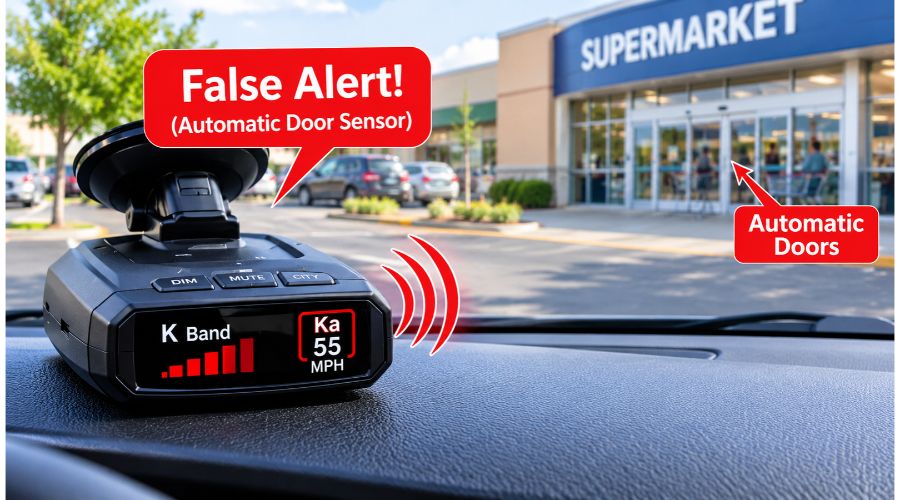
A radar detector alerts you when it detects signals from compatible radar or laser speed-measuring equipment. However, repeated beeping while driving can be frustrating, especially when you see no police vehicle or obvious source.
If your radar detector keeps going off, the problem may be caused by false alerts, nearby vehicle safety systems, automatic door sensors, incorrect sensitivity settings, or interference from other electronic devices.
In some situations, the detector may be responding correctly to radar signals that are not immediately visible to you. Modern radar detectors can identify signals from several directions and at different distances, making it difficult to determine the source of every alert.
Fortunately, you can often reduce unnecessary warnings by adjusting the settings, updating the detector’s software, and checking how and where it is installed.
Read on as we explain why your radar detector keeps beeping, what different alerts mean, and how to troubleshoot common problems. Whether you use an Escort, Uniden, Cobra, or another radar detector, these practical solutions can help you understand the warnings and enjoy a quieter, less distracting driving experience.
Also Read:
Why Does My Radar Detector Keep Going Off?
A radar detector can produce frequent alerts for several reasons. Sometimes it detects genuine radar signals from speed-monitoring equipment. In other cases, it responds to radio-frequency signals from automatic doors, blind-spot monitoring systems, adaptive cruise control, and other electronic devices.
First, identify whether the alerts are genuine or false. Pay attention to the displayed radar band, signal strength, warning frequency, and whether they occur in particular locations. These details can help you narrow down the cause.
However, let us explore some of the reasons your radar detector keeps going off or beeping
1. Automatic Door Openers Trigger False Radar Alerts
Automatic doors are among the most common sources of false radar detector alerts. You may notice your detector beeping whenever you drive past a supermarket, shopping mall, petrol station, pharmacy, or commercial building. This happens because some automatic door systems use microwave or radar-based sensors to detect approaching people and vehicles.
These sensors transmit radio-frequency signals that can overlap with frequencies monitored by radar detectors. As a result, your detector may interpret the signals as potential radar activity and issue a warning.
For example, if your detector repeatedly alerts you near a supermarket entrance but goes quiet after you drive away, an automatic door sensor may be responsible. The same thing can happen when passing several businesses along a busy shopping street.
How to fix it
- Use GPS lockouts: If your radar detector supports GPS lockouts, save the location where the false alert occurs. The device may then automatically mute similar signals when you pass that location again.
- Enable automatic false-alert filtering: Some models have filtering systems designed to reduce interference from automatic door openers and other common sources.
- Adjust sensitivity: Switching to City mode can help reduce unnecessary warnings in areas with many electronic signals.
- Update the detector: Check whether the manufacturer provides firmware updates that improve signal filtering.
Be careful when using manual lockouts. If your detector allows you to mute a particular frequency at a location, make sure you understand how the feature works. You don’t want to unintentionally suppress useful alerts.
2. Blind-Spot Monitoring Systems in Other Vehicles
If your radar detector frequently goes off when driving near other cars, blind-spot monitoring (BSM) systems could be responsible.
Many modern vehicles use radar sensors to monitor areas beside and behind the car. These systems help drivers identify vehicles in their blind spots and may support lane-change warnings. Their sensors transmit radio-frequency signals, some of which can interfere with radar detectors.
This is particularly noticeable in heavy traffic, on multilane highways, and in busy urban areas where several vehicles have advanced driver-assistance systems.
You may notice that your detector produces a K-band or Ka-band warning when you approach a particular vehicle. The alert may become stronger as you get closer and disappear after that vehicle moves away.
This doesn’t necessarily mean your detector is malfunctioning. It may simply be responding to signals from another vehicle’s safety technology.
How to fix it
- Enable BSM filtering: Check whether your detector has a dedicated blind-spot monitoring filter or an advanced filtering mode.
- Use manufacturer-specific filtering: Some Escort, Uniden, and Cobra models include software designed to recognize and reduce interference from vehicle safety systems.
- Adjust sensitivity: City mode or an appropriate sensitivity setting may help reduce unnecessary alerts in traffic.
- Update firmware: Install available updates that improve filtering performance.
Avoid turning off all K-band or Ka-band detection simply because nearby vehicles trigger alerts. These bands are also used by legitimate radar speed-measuring equipment in some areas. Disabling them could prevent the detector from identifying signals you want it to recognize.
3. Your Radar Detector Is Set to High Sensitivity
Another reason your radar detector keeps going off is that its sensitivity setting may be too high for your driving environment.
Sensitivity determines how readily the detector responds to incoming signals. A high-sensitivity setting lets it detect weaker signals from farther away, which can be useful on open highways. However, it may also make the device more likely to respond to signals from automatic doors, nearby vehicles, and other electronic equipment.
This can become particularly frustrating when driving through a city. Urban environments contain numerous radio-frequency sources, including commercial sensors, vehicle safety systems, and other electronic devices.
For example, a detector operating in maximum sensitivity mode may produce frequent warnings while you drive through a shopping district. The same detector may remain relatively quiet on an open rural road.
How to fix it
Adjust sensitivity based on where you are driving.
- City mode: Use this setting in busy urban areas with many potential sources of interference.
- Highway mode: Use it on open roads when you want the detector to operate at a higher sensitivity level.
- Auto mode: If available, this setting automatically adjusts sensitivity according to your speed or other operating conditions.
Some advanced detectors allow you to customize sensitivity for individual radar bands. Consult your user manual before changing these settings, as available options differ by model.
The goal is to reduce unnecessary warnings without turning off useful detection capabilities.
4. Nearby Electronic Devices Are Causing Interference
Electronic devices inside or around your vehicle can sometimes contribute to unwanted radar detector alerts. These include dash cameras, GPS navigation systems, wireless chargers, mobile phones, aftermarket accessories, and other electronic equipment.
Some devices produce electromagnetic or radio-frequency interference. Depending on their design and operating frequencies, they may affect how a radar detector receives or processes signals.
You may notice that your detector starts producing unusual alerts after installing a new dash camera, phone charger, or electronic accessory. This can be a useful clue when diagnosing the problem.
However, not every electronic device will interfere with every radar detector. The effect depends on the equipment, its location, shielding, and the detector’s design.
How to fix it
- Disconnect recently installed accessories: Temporarily switch off or unplug one device at a time to see whether the alerts stop.
- Change device placement: Move accessories farther away from the radar detector where possible.
- Check charging equipment: Poor-quality USB chargers and power adapters may produce electrical interference.
- Inspect the installation: Make sure power cables are properly connected and not damaged.
- Use quality accessories: Choose chargers and electronic accessories that meet appropriate safety and electromagnetic compatibility standards.
If the false alerts stop after you disconnect a particular accessory, reconnect it separately to confirm whether it’s the cause. This method helps you identify the source without unnecessarily removing several devices.
5. Your Radar Detector Is Receiving Signals From Other Radar Equipment
Not every alert is a false alarm. Your detector may be responding to genuine radar signals from speed-monitoring equipment.
Police radar equipment commonly operates on X, K, and Ka frequency bands, although the bands used vary by location. When a detector identifies a compatible signal, it alerts the driver.
You may not always see the equipment responsible for the warning. Radar signals can travel beyond your immediate field of vision, and the source may be positioned around a bend, behind an obstruction, or in another vehicle.
Some detectors can also identify signals from different directions. Models with 360-degree detection may monitor the vehicle’s front, rear, and sides.
How to fix it
You don’t need to treat every radar warning as a malfunction. Instead, learn how your detector communicates different alerts.
- Check the displayed radar band.
- Observe whether the signal strength increases or decreases.
- Watch directional arrows if your detector has them.
- Read the manufacturer’s manual to understand the alert tones.
- Maintain a safe speed and follow posted limits regardless of the warning.
A radar detector cannot reliably tell you whether every detected signal comes from police equipment. It simply identifies compatible signals and communicates them to you.
6. GPS Lockouts Are Not Properly Configured
GPS lockouts reduce repeated false alerts at locations where the detector regularly encounters the same signal. For example, if an automatic door sensor triggers a K-band warning outside a shopping centre, a GPS-enabled detector may let you save that location and mute similar alerts when you return.
If GPS lockouts aren’t configured correctly, your detector may keep producing the same warning every time you pass the location.
Some models automatically learn and remember recurring false alerts. Others require you to mark the location manually. The procedure depends on the manufacturer and model.
How to fix it
- Check GPS availability: Make sure your detector has GPS functionality and that the feature is enabled.
- Allow GPS to acquire a signal: Some devices need time to establish their location after you switch them on.
- Use the correct lockout procedure: Follow the manufacturer’s instructions for saving a false-alert location.
- Review saved locations: If your detector lets you manage lockouts, check whether the location saved correctly.
- Update the database: Install available GPS database and firmware updates.
Remember, GPS lockouts work using location and signal information. Don’t treat a location-based lockout as proof that every future signal in that area is harmless. Use the feature carefully and follow the manufacturer’s guidance.
7. Your Radar Detector Has Outdated Firmware
Radar detector manufacturers occasionally release firmware updates to improve performance, refine false-alert filtering, fix software problems, and maintain compatibility with supported features.
If your detector has outdated firmware, it may not benefit from the latest filtering improvements. This could contribute to repeated false alerts, although outdated software is not necessarily the cause of every beeping problem.
Some modern detectors also use GPS databases containing speed-camera and red-light-camera locations. These databases may need separate updates from the main firmware.
How to fix it
- Identify the exact model of your radar detector.
- Visit the manufacturer’s official website.
- Find the support or downloads section for your model.
- Check whether a newer firmware version is available.
- Follow the manufacturer’s instructions for installing the update.
- Restart the detector and review its settings.
Some manufacturers require a computer, a USB connection, or a smartphone app to update the device. Others provide a dedicated update tool.
Never install firmware intended for a different model. An incorrect update can cause operating problems or make the device unusable.
8. The Radar Detector Is Mounted Incorrectly
The position of your radar detector can influence how it receives signals. If it is mounted at an unsuitable angle, placed behind an obstruction, or positioned too close to other electronic equipment, its performance may be affected.
For example, metalized windshield coatings and certain heated windshield elements can interfere with radio-frequency reception. Some vehicles have special areas in the windshield designed for electronic equipment, so check the vehicle manufacturer’s recommendations.
An incorrectly mounted detector may also produce inconsistent warnings or fail to identify signals as effectively as expected.
How to fix it
- Check the mounting angle: Position the detector according to the manufacturer’s instructions, usually with its front sensors facing the road.
- Avoid obstructions: Keep the antenna area clear of objects that could block or interfere with incoming signals.
- Review windshield compatibility: Check whether your vehicle has a metalized or specially coated windshield.
- Secure the mount: Ensure the suction cup or magnetic mount holds the detector firmly.
- Follow local mounting rules: Position the device so it doesn’t obstruct your view or interfere with vehicle safety equipment.
Don’t assume every unusual alert is caused by poor mounting. Correct positioning is important, but electronic interference and sensitivity settings may still be responsible.
9. The Detector Has a Hardware or Electrical Problem
If your radar detector continues producing unusual alerts after you have checked its settings, software, and installation, it may have a hardware or electrical problem.
A damaged antenna, faulty sensor, loose connector, worn power cable, or internal electronic fault can affect how the device operates. You may notice the detector producing alerts immediately after startup, displaying inconsistent information, or behaving differently than it used to.
Power-related issues can also cause problems. For example, an unstable power adapter or damaged cable may cause the detector to restart or behave unpredictably.
How to fix it
- Inspect the power cable: Look for cuts, loose connections, or visible damage.
- Check the adapter: If you use a 12V or USB power adapter, make sure it is compatible with the detector.
- Restart the device: Follow the manufacturer’s instructions for a normal restart.
- Reset the settings: If the problem continues, consider a factory reset after recording your preferred settings.
- Contact support: If the detector still behaves abnormally, ask the manufacturer or an authorized repair centre to inspect it.
Avoid opening the detector or attempting to repair its internal electronics unless you have the necessary technical expertise. Doing so may damage the device or affect its warranty.
How to Stop Your Radar Detector From Going Off Constantly
If your radar detector produces frequent warnings, you don’t necessarily need to replace it. In many cases, adjusting a few settings and identifying the source of interference can make a significant difference.
Use the following troubleshooting process to narrow down the problem.
Step 1: Identify Which Radar Band Is Triggering the Alert
Start by checking the display whenever the detector warns you. Most models identify the detected band, such as X, K, or Ka.
Different bands can help you understand what type of signal the device is receiving. For example, repeated K-band alerts near commercial buildings may come from automatic door sensors. However, some speed-monitoring equipment also uses K-band, so don’t dismiss every warning automatically.
Record the band, location, and approximate signal strength. This information can help you recognize patterns.
Step 2: Observe Where the False Alerts Occur
Pay attention to the places where your detector repeatedly goes off.
Does it alert you near shopping centres, petrol stations, busy highways, or when driving beside newer vehicles? Does the warning disappear when you move away from a particular location?
If the alerts happen repeatedly in the same place, automatic door sensors or another fixed source of interference may be responsible. If they happen mainly in heavy traffic, nearby vehicle safety systems may be contributing.
Identifying the pattern is more useful than turning off radar bands right away.
Step 3: Switch to City Mode
If you experience frequent false alerts in urban areas, try City mode.
Many radar detectors reduce sensitivity or apply additional filtering in this mode. This can help reduce unnecessary warnings from nearby electronic equipment.
When you leave the city, you can switch back to Highway mode if it suits your model and driving conditions.
Keep in mind that City mode does not eliminate every false alert. Its exact operation varies by manufacturer.
Step 4: Enable False-Alert Filtering
Check your detector’s settings for options such as:
- K-band filtering
- Ka-band filtering
- Blind-spot monitoring filtering
- Collision-avoidance system filtering
- Automatic door filtering
- Advanced signal processing
Enable the appropriate filtering options according to the user manual. Some detectors offer several filtering levels, letting you choose between quieter operation and greater sensitivity.
Avoid turning off an entire radar band without understanding the consequences. You could lose the ability to detect legitimate signals transmitted on that frequency.
Step 5: Check GPS Lockouts
If your detector supports GPS lockouts, use the feature to manage recurring false alerts at familiar locations.
Follow your model’s instructions to save or mute the location. If the device supports automatic learning, check whether that feature is enabled.
Be cautious with manual lockouts, particularly where several signal sources are present. Only mute recurring alerts when you understand how the feature works and are comfortable with its limitations.
Step 6: Update the Firmware
Visit the manufacturer’s website and check for available firmware updates. Follow the official installation instructions and confirm that the update is intended for your exact model.
After updating, restart the detector and check whether its false-alert filtering options have changed. You may also need to update the GPS camera database separately.
Step 7: Test the Detector With Other Electronics Disconnected
If the problem started after installing a new dash camera, phone charger, or other electronic accessory, temporarily disconnect that accessory.
Test the detector with one device disconnected at a time. If the unusual alerts stop, you may have identified a source of interference.
Then try relocating the accessory, changing its power adapter, or consulting the accessory manufacturer.
Step 8: Perform a Factory Reset if Necessary
If the detector continues behaving strangely, a factory reset may help restore its original configuration.
Before resetting, record any custom settings and saved locations you want to retain. The reset procedure varies by manufacturer, so consult the user manual.
After the reset, configure the detector again and test it under normal driving conditions. If the problem remains, contact the manufacturer’s support team.
The video below demonstrates why your radar detector has false alerts and how you can fix them
What Do Different Radar Detector Alerts Mean?
Understanding your radar detector alerts can help you identify why it keeps beeping. Although exact sounds and display messages vary by model, many detectors show the detected band, signal strength, and direction.
X-Band Alert
An X-band alert indicates that the detector has identified a signal within the X-band frequency range supported by the device.
Some older radar speed-measuring systems use X-band, but it can also be associated with other radio-frequency sources. Depending on your location, the detector may produce false alerts from certain automatic sensors or other electronic equipment.
Check your detector’s manual to understand whether X-band detection is necessary in your area before changing the setting.
K-Band Alert
K-band warnings can be confusing because several electronic systems operate within or near this frequency range.
Some police radar equipment uses K-band, while automatic door sensors and vehicle safety systems can also trigger warnings.
If your detector repeatedly displays K-band in shopping areas or heavy traffic, interference may be responsible. Use appropriate filtering rather than automatically turning off K-band detection.
Ka-Band Alert
Ka-band is widely associated with modern police radar speed measurement in many regions. Treat a Ka-band alert seriously.
However, a Ka-band warning does not independently confirm that police are operating nearby. The detector identifies a compatible signal, not the identity of the equipment transmitting it.
Check the signal strength and follow the manufacturer’s guidance when interpreting the warning.
Laser Alert
A laser warning indicates that the detector’s optical sensors have identified a compatible laser signal.
Laser speed-measuring equipment uses focused pulses of infrared light rather than the radio waves used by conventional radar guns.
Laser warnings may occur suddenly because the beam is narrow and directed at particular vehicles. Do not assume that a laser alert provides advance notice or that the detector can identify every laser-based speed measurement.
POP Alert
Some radar detectors include a POP mode that identifies certain brief radar transmissions used by compatible speed-measuring equipment.
This feature isn’t available or supported the same way across all detectors. Some models may also produce false warnings from other short-duration signals.
Check the detector’s manual to understand how POP alerts work and whether you should enable the feature for your driving environment.
How to Reduce False Alerts on Popular Radar Detector Brands
Different manufacturers use different filtering systems and menu options. The following general guidance can help you find the relevant settings, but the exact procedure depends on your detector’s model and firmware.
Escort Radar Detectors
Escort detectors may include features such as AutoLearn, GPS-based filtering, and sensitivity adjustments, depending on the model.
AutoLearn can identify recurring false alerts and help reduce repeated warnings along familiar routes. Some models also filter out vehicle safety systems and other common sources of interference.
If your Escort radar detector keeps going off:
- Check whether GPS is enabled.
- Review the AutoLearn settings.
- Check the available K-band and other filtering options.
- Confirm that the detector has the latest supported firmware.
- Review saved lockouts if the model allows you to manage them.
Models such as the Escort MAX 360c and MAX 3 have different features, so use the instructions for your exact device.
Uniden Radar Detectors
Uniden radar detectors commonly offer sensitivity adjustments, GPS-based false-alert memory, and band filtering, depending on the model.
For example, models in the Uniden R-series offer features designed to help reduce recurring false alerts. Some can remember locations where the same signals are repeatedly detected.
If your Uniden detector keeps beeping:
- Check whether GPS is working correctly.
- Review the GPS Auto Mute or memory settings if available.
- Check the K-band and Ka-band filtering options.
- Update the firmware and camera database where supported.
- Confirm that the detector is mounted correctly.
The Uniden DFR7 and R4W do not have identical menus or capabilities. Always refer to the relevant manual.
Cobra Radar Detectors
Some Cobra models use filtering technology designed to reduce interference from vehicle safety systems and other electronic devices. Depending on the model, they may also offer GPS alerts, sensitivity adjustments, and smartphone connectivity.
If your Cobra radar detector keeps going off:
- Check whether City or Highway mode is selected.
- Review the available false-alert filtering settings.
- Check GPS and location-based alert features if supported.
- Confirm that the firmware is current.
- Inspect the power cable and mounting position.
Cobra models differ considerably, so don’t assume a setting available on one detector is present on another.
When Should You Replace Your Radar Detector?
Frequent false alerts don’t automatically mean your radar detector needs replacing. You can address many problems through sensitivity adjustments, filtering, software updates, or installation changes.
However, replacement may be worth considering if the detector has developed a persistent hardware fault or no longer performs reliably.
Look for the following signs:
- Repeated alerts after troubleshooting: If the detector continues producing unusual warnings after you have checked its settings, power supply, firmware, and installation, it may need professional inspection.
- Inconsistent detection: A detector that regularly misses compatible signals or behaves differently under similar conditions may have a damaged antenna or another hardware problem.
- Unresponsive controls: Buttons that stop working, displays that freeze, or settings you can’t change may indicate an electronic fault.
- Battery problems: If you own a rechargeable model and its battery no longer holds a useful charge, check whether you can replace it.
- Lack of software support: An older detector that no longer receives updates may lack newer filtering improvements or supported database features.
Before buying another model, compare its detection capabilities, false-alert filtering, GPS features, power requirements, and manufacturer support. If you specifically want a cordless detector, confirm that it has an internal rechargeable battery. Bluetooth and Wi-Fi connectivity alone do not make a radar detector cordless.
Frequently Asked Questions
1. Why does my radar detector keep beeping when there are no police around?
Your radar detector may be responding to signals from automatic door openers, blind-spot monitoring systems, collision-avoidance technology, or other electronic equipment. It may also detect genuine radar signals from equipment that isn’t visible from your position.
Check the displayed radar band, signal strength, and location to identify recurring patterns.
2. Why does my radar detector keep going off in the city?
Urban environments contain many electronic devices that can produce signals radar detectors pick up. Automatic doors, traffic sensors, and vehicle safety systems are common sources of interference. Switching to City mode and enabling suitable false-alert filtering may reduce unnecessary warnings.
If your detector supports GPS lockouts, you can also manage recurring alerts at familiar locations.
3. Why does my radar detector keep detecting K-band?
Some police radar systems use K-band, but other devices can also produce signals that trigger K-band warnings. Common examples include automatic door sensors and blind-spot monitoring systems. Check whether the warnings occur near particular businesses or vehicles.
Use appropriate filtering, but avoid disabling K-band unless you confirm whether your area uses it for speed monitoring.
4. Why does my radar detector go off when I pass other cars?
Some modern vehicles use radar-based blind-spot monitoring and collision-avoidance systems. Their sensors may interfere with your detector, especially in heavy traffic.
If the warnings become stronger when you approach a particular vehicle and disappear when it moves away, vehicle safety systems may be responsible. Enable the appropriate BSM or vehicle-interference filtering if your model supports it.
5. Does GPS stop radar detectors from giving false alerts?
GPS can help reduce recurring false alerts by allowing a detector to remember locations where similar signals are repeatedly detected. Some models use GPS lockouts or automatic learning to mute these warnings when you return to the same location.
However, GPS does not identify every false signal, and it cannot guarantee that all unnecessary alerts will disappear.
6. Should I turn off K-band to stop false alerts?
You should not automatically disable K-band simply because your detector produces frequent warnings. Some speed-monitoring equipment uses K-band, depending on the location.
Turning it off could prevent your detector from identifying legitimate signals. Instead, check your local radar frequency usage and use appropriate filtering features to reduce interference.
7. Can a faulty power cable make my radar detector keep beeping?
A damaged cable, loose connector, or incompatible power adapter can cause unstable operation. In some cases, the detector may restart, display errors, or behave unpredictably.
Inspect the power connection and try a manufacturer-approved replacement adapter if necessary. If the problem continues, contact the manufacturer or an authorized repair centre.
8. Why does my radar detector keep going off after a firmware update?
A firmware update may change filtering behavior, restore default settings, or introduce new options. Check whether your sensitivity, band, and false-alert filtering settings changed during the update. Also confirm that you installed the correct firmware for your model.
If the problem persists, consult the manufacturer’s support documentation before attempting a factory reset.
9. Why does my radar detector show a laser alert?
A laser alert means the detector’s optical sensors have identified a compatible infrared laser signal. This may come from laser-based speed-measuring equipment or another compatible light source.
Unlike some radar signals, laser warnings can occur with very little advance notice because the beam is narrow and directed at a particular vehicle.
10. How do I stop my radar detector from going off at automatic doors?
If your detector repeatedly alerts you near automatic doors, enable suitable false-alert filtering or use GPS lockouts if your model supports them. Some detectors can remember recurring signals and mute them at familiar locations. Avoid turning off an entire radar band unless you understand how it affects detection.
Conclusion
If your radar detector keeps going off, the problem may be caused by automatic door sensors, blind-spot monitoring systems, electronic interference, high sensitivity settings, or genuine radar signals. Start by checking the displayed band and observing where the warnings occur.
Then adjust City and Highway modes, enable suitable false-alert filtering, review GPS lockouts, and install available firmware updates. If the alerts continue despite these steps, inspect the power connection and consider professional servicing.
Most importantly, don’t turn off useful radar bands to eliminate unnecessary beeping. A properly configured detector should provide useful information without becoming a constant distraction, helping you remain aware of your surroundings while maintaining safe and lawful driving habits.