
Have you ever blocked a phone number on your Panasonic cordless phone only to realize later that you still need to receive calls from that person?
Perhaps you accidentally blocked a family member, a friend, or an important business contact. Whatever the reason, you don’t have to worry because removing a number from the blocked calls list is usually a straightforward process. However, the exact steps may vary depending on your Panasonic cordless phone model.
If you’re wondering how to unblock a number on a Panasonic cordless phone, the good news is that most models allow you to remove blocked numbers through the handset’s menu or a dedicated Call Block button. You need to access the call-blocking settings, locate the number you want to unblock, and remove it from the list.
In this guide, we’ll show you how to unblock a phone number on different Panasonic cordless phone models, explain what to do when the usual method doesn’t work, and help you troubleshoot common call-blocking problems.
Let’s get started.
Also Read:
How to Unblock a Number on a Panasonic Cordless Phone
The easiest way to unblock a number on a Panasonic cordless phone is to access the blocked calls list and delete the number you no longer want to restrict. Once removed, the phone should be able to receive calls from that number again, provided no other call-blocking feature or service is preventing the call.
Most Panasonic cordless phones have a built-in call-blocking feature that allows you to store unwanted phone numbers. Depending on your model, this feature may be accessed through the Menu button, a dedicated Call Block button, or the phone’s settings.
For many Panasonic models, including several KX-TG series handsets, you can use the following procedure.
Step 1: Press the Menu Button on Your Panasonic Handset
Start by picking up your Panasonic cordless handset and locating the MENU button. On many models, this button is positioned near the upper-right side of the keypad.
Press the Menu button to display the available settings. You should see options such as Phonebook, Caller List, Answering Device, Initial Setup, and other handset functions.
Don’t worry if your menu looks slightly different. Panasonic has released several cordless phone models over the years, and their menu layouts are not identical. What matters is accessing the call-blocking settings.
Step 2: Enter the Call Block Settings
On many Panasonic cordless phone models, you can access the call-blocking list directly by pressing:
MENU → # → 2 → 1 → 7
In other words, press the Menu button, followed by the pound (#) key and the numbers 2, 1, and 7.
This shortcut takes you to the Call Block settings on supported models. Depending on your handset, the display may show options such as:
- Block a single number
- Block range of numbers
- Block unknown CID
If your phone displays these options, use the up or down arrow buttons to select the category containing the number you want to unblock.
For example, if you previously blocked a specific contact, select Block a single number. If you blocked an entire prefix or range of numbers, select Block range of numbers instead.
Remember that this shortcut is not universal. If your handset does not respond to MENU #217, check the model-specific instructions in the following sections or consult your operating manual.
Step 3: Locate the Number You Want to Unblock
After opening the appropriate call-blocking category, press the up or down arrow button to browse the stored entries.
Continue scrolling until you find the phone number you want to remove. Take your time to check the digits carefully, especially if you have several similar numbers stored in the blocked calls list.
This is important because removing the wrong entry could allow unwanted callers to contact you again.
Once you locate the correct number, select it using the handset’s navigation buttons.
Step 4: Press the Erase or Unblock Button
With the blocked number selected, look for the ERASE or UNBLOCK option on the handset display.
The wording depends on your Panasonic cordless phone model. Some handsets use the Erase button, while others provide a dedicated Unblock option.
Press the appropriate button to remove the selected number.
Your handset may then ask you to confirm whether you want to erase the entry. This confirmation prevents you from accidentally deleting a number from the call-blocking list.
Step 5: Confirm Your Selection
If your Panasonic cordless phone displays a confirmation message, use the arrow buttons to select Yes and press SELECT.
The phone should now remove the selected number from the blocked calls list.
Press the OFF button to exit the menu and return the handset to standby mode. On some models, you may need to press EXIT when making the changes from the base unit.
That’s it! You have successfully removed the number from your Panasonic cordless phone’s call-blocking list.
However, don’t assume that every Panasonic handset follows the same procedure. Some newer models have a dedicated Call Block button, while others use a slightly different menu arrangement.
How to Unblock a Number on Different Panasonic Cordless Phone Models
Panasonic manufactures several cordless phone series, including the KX-TG, KX-TGD, KX-TGE, and KX-TGF ranges. Although they share similar functions, the buttons and menu options used to manage blocked numbers may differ.
If the general instructions above don’t work, identify your handset’s model number and follow the appropriate procedure below.
1. Panasonic KX-TG Series Cordless Phones
Several Panasonic KX-TG models use the MENU #217 shortcut to access the blocked calls list.
If you own a compatible handset, follow these steps:
- Press the MENU button.
- Press #217 on the keypad.
- Use the arrow buttons to locate the blocked number.
- Press ERASE.
- Select Yes to confirm.
- Press SELECT to save the change.
- Press OFF to exit.
This procedure applies to many models, including several KX-TGC, KX-TGD, and KX-TGE handsets. However, you should confirm compatibility with your particular model before following it.
If your phone does not recognize the shortcut, check whether it has a dedicated Call Block button or consult its operating manual.
2. Panasonic KX-TG785SK Cordless Phone
The Panasonic KX-TG785SK uses a dedicated Call Block menu to manage blocked numbers.
To unblock a number:
- Press the CALL BLOCK button on your handset.
- Use the up or down arrow buttons to select Block a single number or Block a range of numbers.
- Press SELECT.
- Scroll through the stored entries until you find the number you want to remove.
- Press ERASE.
- Select Yes.
- Press SELECT to confirm.
- Press OFF to exit.
If you want to remove all the blocked numbers, the handset also provides an Erase All option. Be careful when using this feature because it removes every stored entry in the selected call-blocking list.
3. Panasonic KX-TGF34 Series Cordless Phones
Some Panasonic KX-TGF34 models provide a dedicated Call Block button and use an Unblock option when removing numbers from the base unit.
If you’re using a compatible handset, follow these steps:
- Press CALL BLOCK.
- Select Block a single number or Block range of numbers.
- Press SELECT.
- Find the number you want to remove.
- Select ERASE or UNBLOCK, depending on the handset or base unit.
- Choose Yes when prompted.
- Press SELECT to confirm.
- Press OFF on the handset or EXIT on the base unit.
The exact wording may differ between models, so pay attention to the options displayed on your phone.
4. Panasonic KX-TGE26 and KX-TGE27 Cordless Phones
If you own a Panasonic KX-TGE26 or KX-TGE27, you can also use the Call Block menu to remove unwanted entries.
Here’s how:
- Press MENU followed by #217.
- Select the blocked-number category.
- Press SELECT.
- Scroll through the list and highlight the number you want to unblock.
- Press ERASE.
- Select Yes.
- Press SELECT to confirm.
- Press OFF to return to the main screen.
Some models may request an additional confirmation before completing the process. Follow the instructions displayed on the handset.
The video below demonstrates how to block and unblock calls on Panasonic cordless phones
How to Unblock All Numbers on a Panasonic Cordless Phone
What if you have accidentally blocked several phone numbers and want to restore calls from everyone on the list? Instead of removing each number individually, some Panasonic cordless phones allow you to erase or unblock all stored entries at once.
This can save you time, especially if the blocked calls list contains numerous contacts.
However, be careful before using this option. Removing all blocked numbers means that callers previously restricted by your handset may be able to contact you again.
On compatible Panasonic models, follow these steps:
- Press the MENU button and enter #217, or press the dedicated CALL BLOCK button.
- Select Block a single number or Block a range of numbers.
- Press SELECT.
- Press MENU to display additional options.
- Scroll down and select Erase all or Unblock all, depending on your model.
- Press SELECT.
- Choose Yes to confirm your selection.
- If another confirmation appears, select Yes again.
- Press SELECT to complete the process.
- Press OFF to exit.
Note that the exact sequence depends on your Panasonic model. Some newer handsets display an Unblock All option, while others use Erase All.
Also, if your phone stores individual numbers and number ranges in separate categories, you may need to clear each category independently.
Why Is My Panasonic Cordless Phone Still Blocking a Number After Unblocking It?
Have you removed a number from the blocked calls list but still cannot receive calls from that person? This can be frustrating, especially when you have followed the correct instructions.
However, the problem may not necessarily be with the number you removed. Panasonic cordless phones have several call-management features, and another setting could still be preventing the call from coming through.
Here are some possible reasons and what you can do about them.
1. The Number Is Still Stored in the Blocked Calls List
The first thing you should check is whether the number was successfully removed.
Sometimes, users exit the menu before confirming the changes. In other cases, they may select the wrong entry or remove a similar number instead.
Return to the Call Block settings and browse the stored entries. If the number is still there, repeat the removal procedure and make sure you select Yes when prompted.
Also, check whether the same number appears in more than one category. For example, a number may be stored as an individual blocked entry while its prefix is included in a blocked range.
2. You Have Blocked a Range of Numbers
Panasonic cordless phones do more than block individual callers. Some models also allow you to block an entire range of numbers.
For instance, you may block a prefix such as 1800 or a particular area code. When this happens, every incoming number beginning with the stored digits may be rejected.
Removing one individual number will not necessarily restore calls if its prefix remains on the range-blocking list.
To fix this, open the Call Block menu and select Block range of numbers. Browse the entries and remove the relevant prefix using the same Erase or Unblock procedure.
Be careful when removing a range because doing so may allow several previously blocked callers to contact you.
3. The Automated Call Block Feature Is Enabled
Some Panasonic cordless phone models include an Automated Call Block feature that screens incoming calls before allowing them to ring.
This feature is designed to reduce unwanted calls, including robocalls and telemarketing calls. Depending on your model and settings, callers may be asked to enter an access code before the phone connects the call.
If a legitimate caller cannot reach you after you have removed their number from the blocked list, check whether Automated Call Block is enabled.
Open your phone’s call-blocking settings and look for the Automated Call Block option. Follow the model-specific instructions to turn it off or adjust its settings.
Keep in mind that this feature is different from the ordinary blocked-number list. Removing a number from the list does not automatically turn off automated call screening.
4. Your Phone Service Provider Is Blocking the Number
Another possibility is that the number is being restricted by your telephone service provider rather than your Panasonic handset.
Some telephone providers offer call-screening and call-rejection services. If you have activated one of these services, removing a number from your cordless phone’s blocked list may not be enough to restore incoming calls.
Contact your service provider and ask whether the number is being blocked at the network level.
If it is, request instructions for removing it from the provider’s call-rejection settings.
5. The Caller Is Using a Different Number
Sometimes, the person you’re expecting to hear from may be calling using a different phone number.
This is particularly common when people use multiple SIM cards, office telephone lines, or business calling services.
If you have unblocked one number but the person still cannot reach you, ask them to confirm the number they are calling from.
You can then check the Caller ID information on your Panasonic handset and determine whether that particular number appears in the blocked calls list.
What to Do If You Cannot Find the Call Block Option on Your Panasonic Phone
Not every Panasonic cordless phone has the same call-blocking features. Some older models do not support number blocking at all, while others use different menu shortcuts.
If you cannot find the Call Block option, try the following:
Check your handset model number. Look for the model number printed on the handset, base unit, or product label. It usually starts with KX-TG followed by a series of numbers and letters.
Consult the operating manual. Search for your exact model number on Panasonic’s support website and download its operating instructions. Look for sections covering Call Block, Blocked Calls, or Unwanted Calls.
Check for a dedicated Call Block button. Some Panasonic cordless phones have a separate button that provides direct access to call-blocking settings.
Avoid using random keypad shortcuts. Although MENU #217 works on many Panasonic models, it is not supported by every handset. Using the wrong shortcut may open a different setting or do nothing.
If you’re still having trouble, Panasonic customer support can help you identify the correct procedure for your particular handset.
How to Set Automatic Call Blocking on a Panasonic Cordless Phone
Apart from blocking individual phone numbers, some Panasonic cordless phone models allow you to automatically restrict certain types of incoming calls. This feature is useful if you regularly receive unwanted calls from private numbers, international callers, or numbers with specific prefixes.
Depending on your handset model, you may find an option called Block Mode in the phone settings. It permits you to choose the types of calls you want the handset to reject without having to add every unwanted number individually.
Some Panasonic models provide the following automatic blocking options:
- Unknown: Blocks incoming calls when the caller’s phone number is unavailable or not provided. This may include private and out-of-area calls, depending on the telephone service and handset.
- International: Restricts incoming international calls.
- 00 Prefix: Blocks incoming numbers that begin with the digits 00, commonly used as an international dialing prefix.
These settings are normally switched off by default, allowing all calls to come through unless you activate a particular blocking mode.
Steps to Enable Automatic Call Blocking
If your Panasonic cordless phone supports the Block Mode feature, follow these steps:
- Press the MENU button on your handset.
- Use the up or down arrow buttons to scroll through the available options until you find Block Mode.
- Press OK to open the setting.
- Scroll through the available blocking modes and select the one you want to activate: Unknown, International, or 00 Prefix.
- Press OK to confirm your selection.
- Use the up or down arrow buttons to choose the desired setting, usually On or Off.
- Press OK to save your selection.
- Press EXIT to return to the standby screen.
You can repeat these steps to activate or deactivate other blocking modes, depending on your needs.
Important: The Block Mode feature is not available on every Panasonic cordless phone. Its availability and the types of calls it can restrict depend on the handset model and telephone service. Also, blocking unknown callers may prevent legitimate calls from people whose numbers are withheld. If you are expecting important calls from private or international numbers, consider leaving the relevant setting switched off.
How to Block Calls While Using a Panasonic Cordless Phone
Did you know that you can block an unwanted caller without waiting for the call to end? Some Panasonic cordless phone models allow you to add a number to the call-blocking list while receiving an incoming call or speaking to someone on an outside line.
This feature is particularly useful when you receive an unwanted sales call, suspected spam call, or repeated calls from someone you no longer wish to hear from.
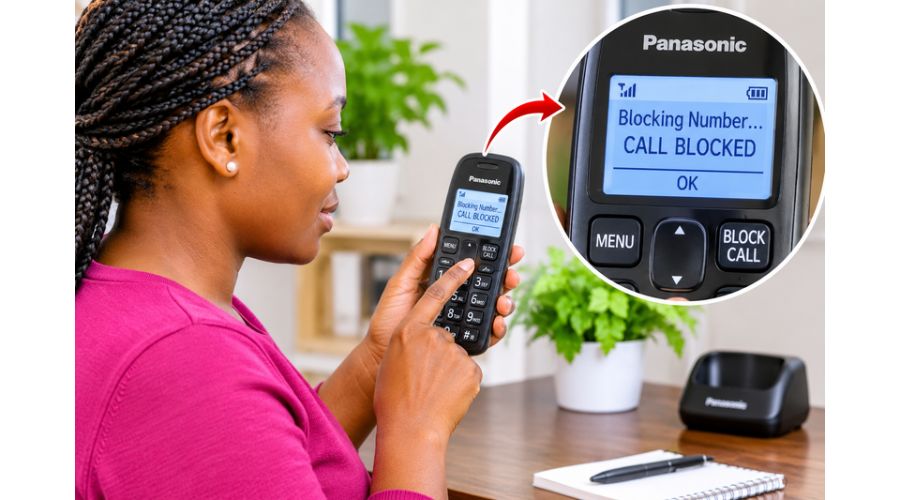
Instead of ending the conversation and navigating through several menu options, you can use the dedicated BLOCK CALL button to disconnect the caller and prevent future calls from that number.
How to Disconnect a Call and Add the Number to the Block List
If your Panasonic handset supports this feature, follow these steps:
- Wait until you receive an incoming call or are already speaking to someone on an outside telephone line.
- Locate and press the BLOCK CALL button on your handset.
- The phone will add the caller’s number to the call-blocking list, provided the number is available.
- The handset will display a CALL BLOCKED message.
- The phone may also announce the blocked-call message if the Talking Caller ID feature is enabled.
- The current call will then be disconnected.
Once the number has been saved to the blocked calls list, your Panasonic cordless phone should automatically reject future calls from that number.
Keep in mind that the voice announcement may not play if Talking Caller ID is disabled.
Also, this function may not be available on every Panasonic model.
How to Block a Caller While Talking on an Outside Call
Some compatible Panasonic cordless phones also allow you to block a caller while you’re already speaking to them.
To use this feature:
- While talking on an outside call, press #1 on your handset.
- The phone will attempt to block the current caller.
- If the caller’s phone number is available, the handset will add it to the call-blocking list.
- The call will be disconnected.
Frequently Asked Questions
1. How Do I Know If a Number Is Blocked on My Panasonic Cordless Phone?
You can check whether a number is blocked by opening the Call Block settings and reviewing the stored entries. On many Panasonic models, press MENU followed by #217. Use the arrow buttons to browse the individual numbers and blocked ranges.
If the number appears in the list, it is stored as a blocked entry. If you cannot find it, check whether it is included in a blocked number range or whether another call-screening feature is enabled.
2. Can I Unblock a Number on a Panasonic Phone Without the Menu Button?
Yes, provided your Panasonic cordless phone has a dedicated CALL BLOCK button. Some models allow you to access the blocked calls list directly through this button. Press it, select the relevant blocked-number category, locate the entry, and choose ERASE or UNBLOCK.
However, the procedure depends on your handset. If it does not have a dedicated Call Block button, you may need to use the Menu button or consult the operating manual.
3. What Happens When I Unblock a Number on a Panasonic Cordless Phone?
When you unblock a number, your Panasonic phone removes that entry from its call-blocking list. The caller should then be able to reach your handset normally, provided their number is not blocked by another setting or your telephone service provider.
Unblocking a number does not automatically call the person, send them a notification, or restore any calls they made while they were blocked.
4. How Do I Block a Number Again After Unblocking It?
If you change your mind, you can add the number to the blocked calls list again. On many compatible Panasonic models, press MENU followed by #217, select Block a single number, and choose Add.
Enter the phone number, press SAVE, and then OFF to exit. Some models also allow you to block a number directly from the Caller List by selecting the incoming call and pressing CALL BLOCK. Check your operating manual for the exact procedure.
5. Why Is MENU #217 Not Working on My Panasonic Cordless Phone?
The MENU #217 shortcut is supported by many Panasonic cordless phone models, but it is not universal. Your handset may use a dedicated CALL BLOCK button or a different menu arrangement. First, check the model number printed on your handset or base unit.
Then consult the corresponding Panasonic operating manual to identify the correct call-blocking procedure. Also, make sure you’re pressing the Menu button before entering #217 rather than entering the numbers from the standby screen alone.
Conclusion
Unblocking a number on a Panasonic cordless phone is usually simple once you know where to find the Call Block settings. On many models, pressing MENU followed by #217 gives you access to the blocked calls list, where you can select the number, press ERASE, and confirm your choice.
Other models use a dedicated CALL BLOCK button and may display an UNBLOCK option instead. If these instructions don’t work, check your handset’s model number and consult its operating manual. With the correct procedure, you can quickly restore calls from family, friends, and other important contacts.