
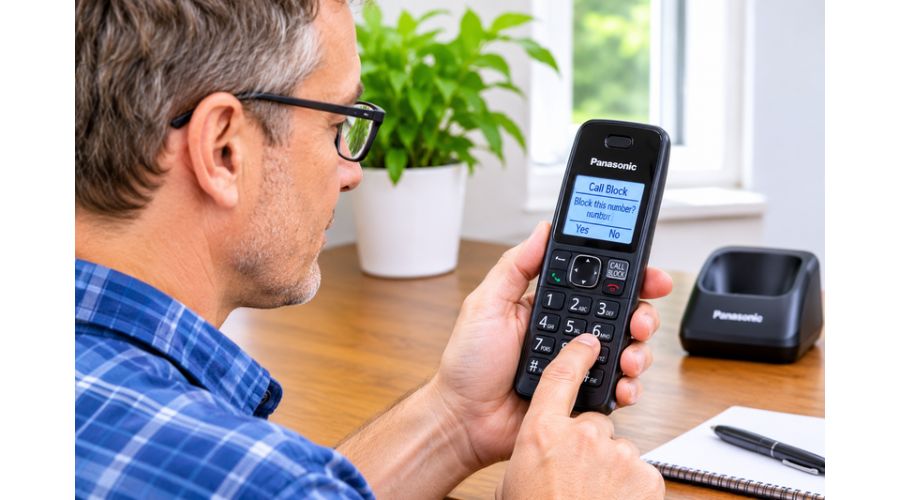
Repeated calls from telemarketers, robocallers, scammers, or people you would rather not speak to can be frustrating. The good news is that many Panasonic cordless phones have a built-in call-blocking feature that allows you to stop unwanted numbers from reaching your handset.
Once you add a number to the call block list, the phone can automatically reject future calls from that number.
If you are wondering how to block a number on a Panasonic cordless phone, the process is straightforward. On many models, you can open the call-blocking menu by pressing MENU, then #217; select the option to block a single number; and enter the telephone number you want to restrict.
Some models also let you block a number directly from the caller ID list, block a range of numbers, or reject calls that arrive without an identifiable phone number.
However, Panasonic cordless phones don’t all use the same menu system. The steps can differ between KX-TG, KX-TGD, KX-TGE, and KX-TGF models, as well as between regional versions of the same phone.
This guide explains common methods for blocking unwanted calls, how to use additional call-blocking features, and what to do if the option is missing from your handset. Read on.
Also read:
How to Block a Number on a Panasonic Cordless Phone
The easiest way to block a specific telephone number on many Panasonic cordless phones is to add it manually to the call block list. This method is useful when you already know the number you want to restrict, even if the person has not called you recently.
On supported models, you can access the call-blocking settings through the handset’s menu. You do not need to contact your telephone service provider to use this built-in feature, although you may need Caller ID service for some additional blocking functions.
Follow these steps:
- Pick up your Panasonic cordless handset and make sure it is in standby mode.
- Press the MENU button.
- Enter #217 using the handset’s keypad.
- Look for an option such as Block a single number, Block Single Number, or Single Number.
- Press SELECT, OK, or the corresponding confirmation button.
- If needed, press MENU again, then navigate to Add.
- Select Add and enter the complete telephone number you want to block.
- Check the digits carefully before saving.
- Press SAVE, OK, or the appropriate confirmation button.
- Press OFF or the hang-up button to return to the standby screen.
The number should now appear in your phone’s call block list. When that number calls again, a compatible Panasonic phone can automatically reject the call instead of letting the handset ring normally.
Important Things to Check When Adding a Number
Before saving the number, make sure you enter it in the correct format. Some Panasonic models recommend including the area code when storing a blocked number. If you enter only part of a telephone number, the phone may not recognize the caller correctly.
For example, if you want to block a number that appears as 555-123-4567, enter the complete number rather than only the final seven digits when your model supports full-number storage.
Many models allow you to store numbers of up to 24 digits, although the exact limit depends on the model. Also, remember that a blocked-number list is not necessarily the same as your phonebook. Saving a number in your contacts does not automatically block it.
If entering #217 does not open the call-blocking menu, check your phone’s operating instructions. Some models use different menu shortcuts or display different wording.
How to Block a Number Directly From the Caller ID List
You do not always have to type an unwanted number manually. If someone has already called you and their number appears in your Panasonic cordless phone’s caller ID list, you may be able to add it to the blocked list directly.
This is particularly useful when you receive repeated calls from unfamiliar numbers. Instead of writing the number down and entering it separately, you can select the call record and save it as a blocked number.
The procedure varies slightly between models, but the general steps on supported Panasonic phones are:
- Press the CID (caller ID) button. On many handsets, this is the down-arrow button.
- Use the up or down navigation keys to find the number you want to block.
- Highlight the unwanted caller’s entry.
- Press MENU.
- Look for an option such as Save caller ID, Save CID, or Call Block.
- Select the call-blocking option.
- Choose Yes when the phone asks you to confirm.
- Press SELECT, OK, or SAVE to complete the process.
- Press OFF or the hang-up button to exit.
On some models, you may need to select Save caller ID first and then choose Call Block from the next screen. Other models display an option such as Save Call Block directly.
What If the Number Is Not Displayed Correctly?
Sometimes a caller ID entry contains an incomplete number or a format that does not match the number used when the person calls. If your Panasonic phone offers an editing option, you can correct the number before saving it.
For example, you may need to include the area code or remove an unnecessary prefix, depending on your telephone system and the phone’s requirements.
Be careful when blocking a number from the caller ID list. If you select the wrong entry, you could accidentally block someone you want to hear from. Always review the displayed number before confirming.
How to Block a Range of Numbers on a Panasonic Cordless Phone
Blocking one number may not be enough when you receive repeated calls from several numbers that share the same prefix. Some telemarketers and automated callers use multiple telephone numbers, making it difficult to stop them individually.
Fortunately, selected Panasonic cordless phone models support a feature called Block Range of Numbers or Range of Numbers. This allows you to block a group of numbers that begin with the same digits.
For example, if you repeatedly receive unwanted calls from numbers beginning with 555-123, you may be able to block that prefix rather than adding every caller separately.
Here is how to set it up on compatible models:
- Press MENU on your Panasonic cordless handset.
- Enter #217.
- Select Block range of numbers or Range of Numbers.
- Press SELECT or OK.
- Press MENU and choose Add.
- Enter the beginning digits of the numbers you want to block.
- Review the digits to make sure the prefix is correct.
- Press SAVE, OK, or the confirmation button.
- Press OFF to return to the home screen.
Some Panasonic models let you enter a range of two to eight digits. The phone then uses those digits to identify calls that match the blocked range.
When Should You Block a Range of Numbers?
This feature is useful when unwanted callers repeatedly change the final digits of their telephone numbers but keep using the same prefix.
For instance, you may receive calls from:
- 555-123-1001
- 555-123-1002
- 555-123-1003
- 555-123-1004
Instead of blocking all four numbers separately, you could block the shared prefix if your handset supports number-range blocking.
However, use this feature carefully. Blocking a short prefix can affect many legitimate callers who happen to use the same beginning digits.
A longer prefix is generally more specific, but you should still check the numbers you intend to restrict before saving the entry.
If your phone does not display a range-blocking option, it may not support the feature. You can still block individual numbers where that option is available.
How to Block Unknown or Private Numbers on a Panasonic Cordless Phone
Some unwanted callers deliberately hide their telephone numbers. Instead of displaying a normal number, the caller ID screen may show messages such as Private, Out of Area, or Unavailable.
Blocking each of these calls individually can be difficult because the phone may not receive a number that you can save to its blocked list.
Some Panasonic cordless phones offer a separate setting to reject incoming calls that don’t provide a telephone number. This feature is different from blocking a specific caller. It lets the phone reject calls when caller ID information is missing.
On many compatible models, you can access this setting as follows:
- Press MENU on the handset.
- Enter #240.
- Look for the setting that controls calls without a phone number.
- Use the up or down navigation keys to select your preferred option.
- Press SAVE, OK, or SELECT to confirm.
- Press OFF to exit.
The exact wording may vary. Depending on the model, you may see an option to turn anonymous or unidentified caller blocking on or off.
What Types of Calls Can This Setting Block?
When enabled, this feature may reject calls where the caller’s telephone number is not provided. Examples include:
- Private-number calls.
- Calls marked as out of area.
- Calls with unavailable caller ID information.
- Some calls from systems that do not transmit a recognizable telephone number.
However, this setting does not necessarily block every suspicious or unwanted call. A telemarketer who transmits a valid telephone number may still get through unless you separately add that number to your call block list.
Be Careful When Blocking Unknown Callers
Although blocking private numbers can reduce unwanted interruptions, it may also prevent legitimate calls from reaching you.
For example, some hospitals, businesses, government offices, and organizations may place calls using systems that do not display their telephone numbers. If you depend on calls from such organizations, consider whether blocking all unidentified callers is appropriate.
Also, some Panasonic models may handle calls without caller ID differently depending on the telephone service being used. Check the operating instructions for your exact model before relying on this feature.
How to Block Calls Using the BLOCK CALL Button on a Panasonic Cordless Phone
Some Panasonic cordless phones have a dedicated BLOCK CALL button. This makes it easier to stop an unwanted caller without navigating through several menu screens.
If your handset has this button, you may be able to use it while an incoming call is ringing or while you are already speaking to someone on an outside call.
The exact behavior depends on the model, but the general purpose is to let you quickly block the current caller.
How to Block an Incoming Call While the Phone Is Ringing
If an unwanted number appears on your handset while it is ringing, you may be able to block it immediately.
Follow these steps:
- Wait for the incoming call to appear on the handset display.
- Check the caller ID information to confirm that it is the number you want to block.
- Press the BLOCK CALL button.
- Follow any on-screen confirmation instructions.
- If prompted, select Yes or press SELECT to confirm.
On supported models, the phone may disconnect the incoming call and add the caller’s number to the blocked list. The display may show a message such as CALL BLOCKED.
This method is convenient because you do not have to wait until the call ends and then search for the number in your caller ID history.
How to Block a Caller While Talking on an Outside Call
Some Panasonic cordless phones also allow you to block a caller while you are already speaking to them.
For example, imagine answering a call and discovering that it is an unwanted sales call. Rather than ending the conversation and manually adding the number later, you may be able to use the call-blocking shortcut.
On models that support it:
- While speaking on an outside call, press BLOCK CALL.
- If your model supports the shortcut, you may also be able to press #1 during the conversation.
- Follow any confirmation prompt shown on the handset.
- Wait for the phone to complete the blocking action.
The phone may disconnect the call and add the caller’s number to the blocked list.
Keep in mind that this shortcut is not available on every Panasonic cordless phone. Some models require you to use the dedicated button, while others may not support blocking a caller during an active conversation.
What Happens When You Press BLOCK CALL?
On compatible phones, pressing the BLOCK CALL button disconnects the unwanted call and saves the caller’s number in the blocked list.
You may hear a confirmation announcement or see a message on the handset display. Some models also use a voice announcement such as CALL BLOCKED.
If Talking Caller ID is turned off, the phone may not announce the blocking message aloud. The display and call-disconnection behavior may still work as described in the model’s manual.
Another important limitation: if the caller’s number is unavailable or not transmitted, the phone may disconnect the call without saving a usable number to the blocked list. This means the same caller could potentially call again.
How to Block Automated and Robocalls on a Panasonic Cordless Phone
Blocking individual numbers is useful, but it may not be enough to stop automated calls. Robocallers and telemarketers can use different telephone numbers, making it difficult to identify and block every unwanted caller manually.
Some Panasonic cordless phone systems include an Automated Call Block feature. Rather than relying only on a list of blocked numbers, this feature screens incoming calls before allowing them through.
When enabled, the phone plays a greeting asking the caller to enter an access code. The system uses the caller’s response to determine whether to allow the call.
Calls from numbers already stored in the blocked list can be disconnected without playing the screening greeting. Depending on the model and settings, callers in your phonebook or approved caller lists may also be allowed through without entering the code.
How to Turn On Automated Call Blocking
If your Panasonic phone supports Automated Call Block, follow the instructions below:
- Press the CALL BLOCK button on the handset.
- Press SELECT.
- Use the up or down arrow keys to find Block/Unblock.
- Press SELECT.
- Choose ON to activate the feature.
- Press SAVE.
- If the phone asks you to confirm, select Yes.
- Press SELECT to complete the setting.
- Press OFF to exit.
Once activated, the phone can screen incoming calls using its automated call-blocking system.
How Does Automated Call Blocking Work?
The feature makes it harder for unwanted automated callers to reach you.
When an incoming call arrives, the system may play a recorded greeting and ask the caller to enter a specific access code. Legitimate callers can follow the instructions, while many automated calling systems may fail to respond correctly.
The phone can then decide whether to connect or reject the call based on its settings.
However, Automated Call Block is not a guarantee that every robocall will be stopped. Some unwanted callers may still get through, and the screening process may inconvenience legitimate callers.
Panasonic also notes that the Automated Call Block feature on supported systems requires Caller ID service from your telephone provider. Availability and operation depend on the model.
How to Set Up Automatic Call Blocking on a Panasonic Cordless Phone
Some Panasonic cordless phones offer additional blocking options that let you reject calls based on certain characteristics. These options are different from manually blocking a single telephone number.
Depending on your model, available settings may include Unknown, International, and 00 Prefix.
These features are useful when you receive unwanted calls from specific sources or numbers.
1. Unknown
The Unknown option can reject calls when the telephone number is not provided. This may include calls from private or unidentified callers.
It is useful when you frequently receive calls from people who hide their caller ID information.
However, some legitimate callers also use telephone systems that do not transmit their numbers. Consider this before enabling the setting.
2. International
The International option blocks incoming international calls.
It may be useful if you do not expect calls from outside your country and regularly receive unwanted international calls.
Before enabling it, remember that friends, relatives, customers, or business contacts abroad may also be affected.
3. 00 Prefix
The 00 Prefix option can block calls whose telephone numbers begin with the digits 00.
This may help restrict certain international dialing formats. However, international dialing prefixes differ between countries and telephone systems, so this option should not be treated as a universal international-call filter.
How to Configure Automatic Call Blocking
On Panasonic models that provide these options, the general procedure is:
- Press MENU on the handset.
- Use the up or down arrow keys to find Block Mode.
- Press OK or SELECT.
- Choose the blocking category you want to configure.
- Press OK.
- Select the desired setting, such as ON or OFF.
- Press OK to save your choice.
- Press EXIT or OFF to return to the standby screen.
The available categories and menu wording depend on your handset. If you cannot find Block Mode, consult the manual for your exact model rather than assuming that the feature is available.
Also, remember that automatic blocking settings may affect legitimate callers. Review each option before switching it on.
How to Block a Number on Different Panasonic Cordless Phone Models
Panasonic has produced several cordless phone families over the years. Although many use similar call-blocking features, their menus, buttons, and shortcut combinations are not always identical.
This is why a procedure that works on one Panasonic cordless phone may not work on another.
The following are common model families and the blocking methods you may encounter.
Panasonic KX-TG Series
Many Panasonic KX-TG cordless phones include a call-blocking menu you can access by pressing MENU, then #217.
On compatible models, you can select a single number or a range of numbers, choose Add, and enter the digits you want to block.
Some KX-TG models also allow you to block a number directly from the caller ID list. Select the caller’s entry, open the menu, choose the call-blocking option, and confirm your selection.
However, the KX-TG name covers many different models. Options can vary, so check the model number printed on the handset or base unit before following model-specific instructions.
The video below illustrates how to block numbers on Panasonic KX-TG Series
Panasonic KX-TGD Series
Selected KX-TGD cordless phone systems provide a call-blocking menu for storing unwanted numbers.
Depending on the model, you may be able to enter a number manually, select a caller from the caller ID list, or block a range of numbers.
Start by checking whether your handset responds to MENU → #217. If the menu opens, follow the on-screen instructions.
If the shortcut doesn’t work, consult the operating manual for your exact KX-TGD model.
Panasonic KX-TGE Series
Some Panasonic KX-TGE cordless phones include a dedicated call-blocking feature. Depending on the system, you may be able to block calls through the menu or use a dedicated button.
Certain models also support additional features such as blocking calls without a displayed telephone number or screening incoming calls through automated call blocking.
If your handset has a BLOCK CALL button, check the manual to see whether it supports blocking an incoming caller while the phone is ringing or while you are talking.
Panasonic KX-TGF Series
Some KX-TGF systems provide more advanced call management features, including call-blocking controls and, on supported models, automated call screening.
The exact steps depend on the model. Look for the CALL BLOCK button or open the handset menu to locate the relevant blocking options.
If you want to block one specific number, use the single-number blocking procedure where available. If you want to screen calls from unknown or automated callers, check whether your system supports those additional functions.
Why You Should Check the Full Model Number
A product family name alone is not always enough to identify the correct instructions. For example, two Panasonic phones with similar KX-TG model names may have different menus or button layouts.
You can usually find the full model number on the handset, the base unit, or the label underneath the phone.
Once you have the full model number, look up its operating instructions on Panasonic’s support website. This will help you confirm the correct menu shortcut, available call-blocking features, and button functions.
Why Is My Panasonic Cordless Phone Not Blocking a Number?
If you added a number to the call block list but the phone still rings when that person calls, you may have entered the number incorrectly, or the phone’s call-blocking settings may be misconfigured.
Here are some common reasons and what you can do about them.
1. You Entered the Wrong Telephone Number
One of the most common reasons a Panasonic cordless phone fails to block a caller is an incorrect number.
Even a small difference can prevent the phone from matching an incoming call to the blocked entry. For example, you may have saved the number without an area code, or the incoming caller ID may include a prefix you didn’t enter when you created the blocked entry.
How to fix it:
Open the call block list using the appropriate menu shortcut, often MENU → #217 on compatible models. Find the entry and compare it with the number shown in the caller ID history.
If necessary, edit the number and save it in the correct format. Include the area code when your model requires it.
2. You Blocked Only One Number, but the Caller Is Using Another
Some unwanted callers use multiple telephone numbers. You may successfully block one number only to receive another call from the same organization using a different number.
For example, a caller may contact you using one number in the morning and another in the afternoon.
How to fix it:
Add each unwanted number to your blocked list. If the numbers share a common prefix and your handset supports number-range blocking, consider blocking the range instead.
Be cautious with this approach because blocking a broad range may also affect legitimate callers.
3. The Number Was Not Saved Successfully
You may have selected a number and started the blocking process without completing the final confirmation step.
Some Panasonic phones require you to press SAVE, OK, or SELECT before storing the entry. Exiting the menu too early can leave the number unblocked.
How to fix it:
Return to the call block list and check whether the number appears. If it is missing, repeat the procedure and make sure you confirm the entry before exiting.
4. You Are Using a Feature That Your Model Does Not Support
Not every Panasonic cordless phone supports number-range blocking, unknown caller rejection, automated call screening, or a dedicated BLOCK CALL button.
If you are following instructions intended for another model, you may not find the same settings.
How to fix it:
Check the full model number on your handset or base unit. Download the matching operating instructions from Panasonic’s support website and look for the section on storing unwanted callers or call blocking.
Don’t assume every phone in the same product family has identical features.
5. The Caller Is Using a Hidden or Unavailable Number
A blocked-number list normally relies on the phone receiving a telephone number that it can compare with stored entries.
If the caller hides their number, the phone may not have enough information to match that call to a specific blocked entry.
How to fix it:
If your Panasonic phone supports it, enable the setting for blocking calls without a phone number. On many compatible models, this option can be accessed through MENU → #240.
Remember that this may also reject legitimate calls from people whose numbers are unavailable.
6. Your Telephone Provider Is Affecting the Call
Some telephone service providers offer their own call-screening or call-blocking services. These operate separately from the call-blocking feature built into your Panasonic cordless phone.
If your provider restricts a number, changing the handset’s blocked list may not resolve the issue. Similarly, removing a number from the handset’s list will not necessarily remove a restriction the telephone provider applies.
How to fix it:
Check whether your telephone service includes a separate call-blocking feature. If the problem continues, contact your provider and ask whether the number is being restricted at the network level.
7. The Phone Has a Problem With Its Settings
A software or configuration problem can sometimes affect how the handset handles calls.
If the blocking feature previously worked but has suddenly stopped responding, check whether the phone has been reset, whether the base unit is connected correctly, or whether other call-handling settings have changed.
How to fix it:
Start by checking the blocked list and confirming that the entry is still present. You can also power-cycle the base unit by disconnecting it from its power source briefly and reconnecting it.
Avoid performing a full factory reset unless necessary. A reset may erase saved settings, phonebook entries, and other personal information.
How to Check Whether a Number Is Successfully Blocked
After adding a number to your Panasonic cordless phone’s blocked list, check that the entry saved correctly.
The simplest way is to open the call-blocking menu and review the stored numbers.
On many compatible models:
- Press MENU.
- Enter #217.
- Select the single-number or range-of-numbers list.
- Browse the saved entries.
- Check that the number you wanted to block appears.
- Press OFF to exit.
If the number is displayed correctly, it should be stored in the phone’s call block list.
Some Panasonic models also keep a record of blocked calls in the caller ID history. This can help you identify whether the phone has rejected an incoming call.
However, remember that the caller ID history and blocked-number list serve different purposes. A call appearing in the caller ID history does not necessarily mean it was allowed through. Some Panasonic phones also log rejected calls.
How to delete a number from the allow list
Follow the steps below to delete a number from the allow list
- Press the [ MENU ] button.
- Press the arrow up ▲ or down ▼ button to select “Allow List “.
- Press [ OK ].
- Press the arrow up ▲ or down ▼ button to select the desired entry.
- Press the [ ERASE button.
- Press the arrow up ▲ or down ▼ button to select “Yes “.
- Press [ OK ].
- Press [ Exit ] 2 times.
Besides, if you want to erase all allowed entries, follow the steps below
- Press the [ MENU ] button.
- Press the arrow up ▲ or down ▼ button to select “Allow List “.
- Press [ OK ] 2 times.
- Press the arrow up ▲ or down ▼ button to select “Erase All”
- Press [ OK ]
- Press the arrow up ▲ or down ▼ button to select “Yes “.
- Press [ OK ].
- Press [ Exit ].
Frequently Asked Questions
1. How Do I Block a Number on a Panasonic Cordless Phone Without Caller ID?
If you already know the telephone number, you may be able to add it manually to the call block list. On many compatible models, press MENU → #217, select the single-number blocking option, choose Add, and enter the number.
If the caller hides their number and the handset does not receive caller ID information, you may need to use the unknown or private caller blocking feature instead, if your model supports it.
2. Does MENU #217 Work on All Panasonic Cordless Phones?
No. MENU followed by #217 is a common shortcut for accessing the call-blocking menu on many Panasonic cordless phones, but it is not universal.
Some models use different menu labels, buttons, or shortcuts. If #217 does not work, check the operating instructions for your exact model number.
3. Can I Block Multiple Numbers on a Panasonic Cordless Phone?
Yes, many Panasonic cordless phones allow you to store multiple unwanted numbers in the call block list.
Selected models also support blocking a range of numbers by entering a shared prefix. This can help when unwanted callers repeatedly change the last digits of their telephone numbers.
The number of entries and range-blocking options depend on the model.
4. What Happens When I Block a Number on a Panasonic Cordless Phone?
When a supported Panasonic phone receives a call from a number on its blocked list, it can automatically reject the call instead of allowing the handset to ring normally.
The exact behavior varies by model and settings. Some phones disconnect the call without an audible ring, while others may display a blocked-call message or record the call in the caller ID history.
Blocking a number does not notify the caller that you have restricted them.
5. Can I Block a Number on a Panasonic Cordless Phone While It Is Ringing?
Some Panasonic models have a dedicated BLOCK CALL button that allows you to block an incoming caller while the phone is ringing.
If your handset supports this feature, press the button when the unwanted call appears and follow any confirmation instructions.
Other models require you to add the number through the call-blocking menu or caller ID list.
Conclusion
Blocking unwanted calls on a Panasonic cordless phone is a simple way to reduce interruptions from telemarketers, persistent callers, and other unwanted numbers. On many models, you can do this by pressing MENU → #217, selecting the single-number blocking option, and saving the telephone number you want to restrict.
You can also block a caller directly from the caller ID list, block a range of numbers, or use additional features to reject unidentified and automated calls where your model supports them.
The most important thing is to use instructions that match your exact Panasonic handset. Although many models share similar call-blocking functions, their menu shortcuts and available features can differ.
If the usual method does not work, check the model number on your handset or base unit and refer to its operating manual before changing other settings.